Muhammad Manamil on December 01, 2025
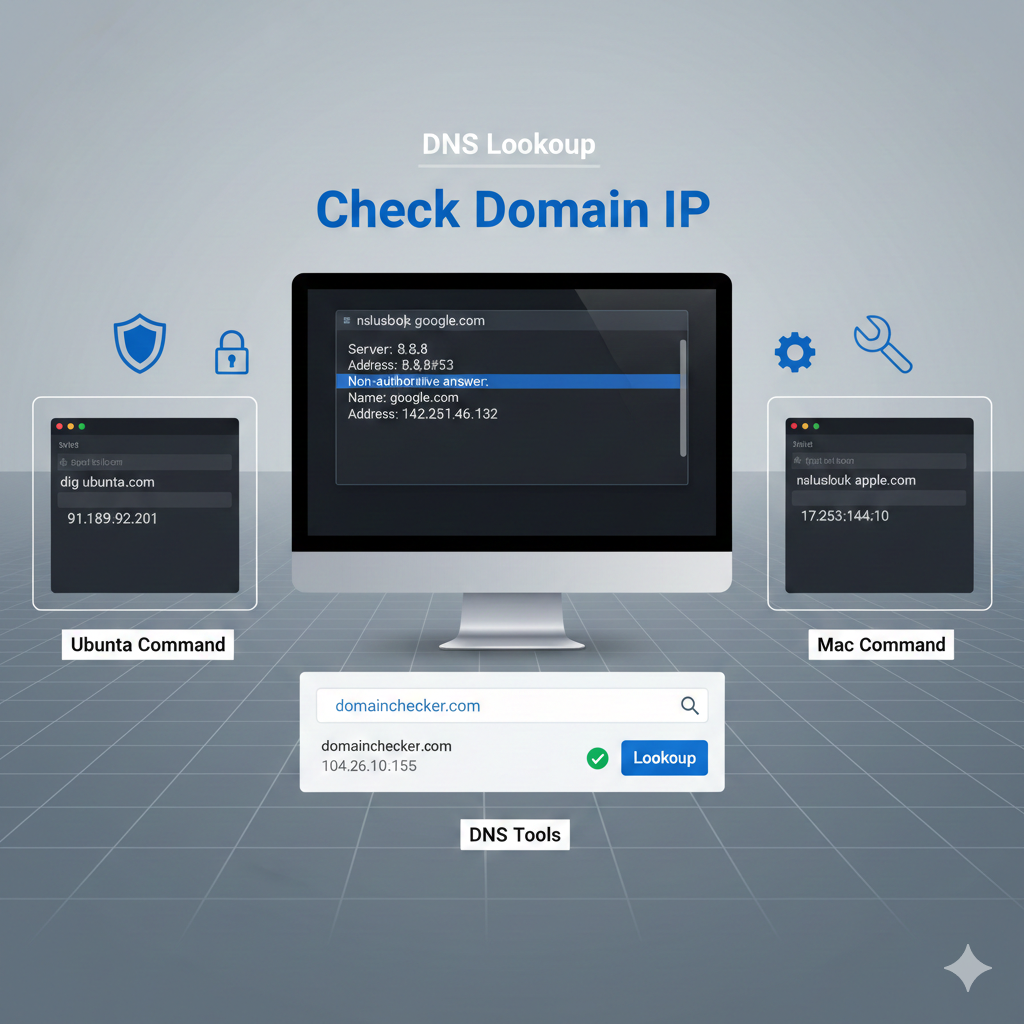



When managing a website or troubleshooting DNS issues, one of the most common tasks you'll encounter is checking the IP address of a domain. The IP address allows you to identify the exact location of a website on the internet, which can be crucial for resolving issues related to website access, server configuration, and security. In this guide, we’ll show you how to check a domain's IP address on Ubuntu, Mac, and through online DNS tools.
Understanding how to find your domain’s IP address is essential for several reasons:
Troubleshooting: If your website is down, knowing your domain’s IP address can help you diagnose the problem — whether it’s a server issue or DNS misconfiguration.
Security: Knowing your domain's IP address allows you to monitor network activity and protect against threats such as DDoS attacks.
DNS Records: To configure your DNS settings properly, you’ll need the correct IP address associated with your domain.
Checking your domain's IP is a straightforward process, whether you’re on a Linux-based Ubuntu system, a Mac, or prefer to use online tools. Let’s walk through the different methods below.
If you're using Ubuntu, the easiest way to check the IP address of a domain is through the command line. You can use tools like nslookup or dig to get the IP.
nslookup:Open the terminal by pressing Ctrl+Alt+T.
Type the following command:
nslookup yourdomain.com
Replace “yourdomain.com” with the actual domain you want to look up.
Press Enter. The terminal will display the domain’s IP address under the "Non-authoritative answer" section.
dig:Open the terminal.
Type the following command:
dig yourdomain.com
This will provide detailed information, including the IP address of the domain under the "ANSWER SECTION."
For more detailed DNS record lookups on Ubuntu, check out our DNS Checker Guide & Tools.
If you’re using a Mac, the process is similar to Ubuntu. You can use Terminal to check your domain’s IP address with nslookup or dig.
nslookup on Mac:Open Terminal from Applications > Utilities.
Type the following command:
nslookup yourdomain.com
Replace “yourdomain.com” with the domain you want to check.
Press Enter. The IP address will be displayed in the output.
dig on Mac:Open Terminal.
Type the following command:
dig yourdomain.com
Press Enter to get detailed DNS records, including the IP address of the domain.
Both nslookup and dig are built-in tools on Mac, so you don’t need to install anything extra.
For additional DNS record verification, take a look at DNS Checker Tool to Verify Your DNS Records and IP Address.
If you prefer a simpler and faster approach, online DNS tools like DNS Checker can help you quickly find the IP address of your domain without the need for command-line tools.
Visit a reliable DNS lookup tool like DNS Checker.
Enter your domain name (e.g., yourdomain.com) into the search bar.
Click Check DNS. The tool will display the domain's associated IP address.
This is a great option for those who want a quick DNS lookup without using a command-line interface. For more advanced features, explore our DNS Checker Tool.
Online tools provide the benefit of quickly checking multiple DNS records and can be especially useful when you're diagnosing DNS issues across different servers. For more help on DNS troubleshooting, check our post on How to Fix DNS Server Not Responding Error.
Whether you're using Ubuntu, Mac, or an online DNS tool, checking your domain’s IP address is a crucial step in maintaining your website’s performance, security, and troubleshooting DNS issues. By using the methods outlined in this guide, you can quickly find the information you need and ensure that your domain is properly configured.
Remember, staying informed about DNS and domain configurations is essential for keeping your website running smoothly. If you're still uncertain about DNS records, or need to troubleshoot further, check out our comprehensive DNS Checker Guide & Tools.
Featured Posts
Categories
December 01 2025
DNS Checker Tool - Verify Your DNS Records and IP AddressIf you're managing a website, ensuring that your DNS records are correctly configured is crucial for maintaining its performance and availability. With our DNS Checker Tool, you can easily verify your DNS records and check your IP address to troubleshoot any issues that may arise.
January 19 2026
Unmasking the N+1 Query Problem in Laravel: Your Guide to Faster AppsStop the N+1 query problem from killing your Laravel app's performance! 🚀 Learn exactly what causes this common database bottleneck and how to fix it in seconds using Eloquent Eager Loading (with()). Perfect for beginners looking to write professional, lightning-fast code.
November 10 2025
Upgrading to Laravel 12 – Common Issues & SolutionsUpgrading to Laravel 12 introduces modern improvements but can also create unexpected issues if your application isn’t prepared. This guide provides a clear, step-by-step upgrade process along with solutions to the most common errors—covering routing changes, PHP requirements, storage symlink problems, Vite build failures, namespace issues, and more. Follow this tutorial to ensure a smooth and error-free migration to Laravel 12.


Built by a developer, for developers — free tools and real-world guides to help you code smarter, faster, and without the guesswork.
© 2026 — manamil.dev. All Rights Reserved.