Muhammad Manamil on November 26, 2025
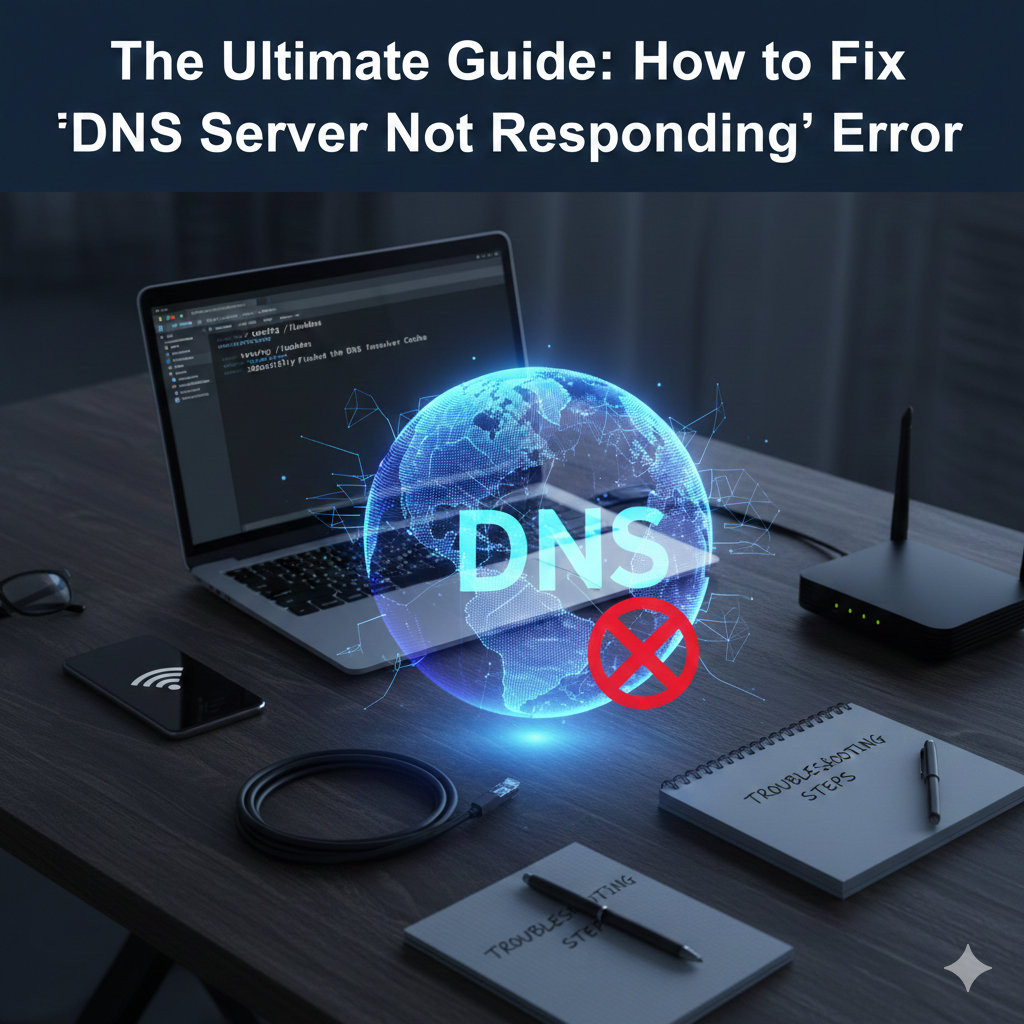



Few error messages are as frustrating as "DNS Server Not Responding." It’s the digital equivalent of trying to call a business but realizing the phone book entry is wrong—you know where you want to go, but your device can't translate the name into an address.
This common problem means your device can't connect to the Domain Name System (DNS) server, which translates human-readable domain names (like google.com) into computer-readable IP addresses. When it fails, your internet connection stalls.
Fortunately, this issue is rarely catastrophic. In most cases, you can fix it yourself with a few simple steps. Here is the definitive troubleshooting guide, starting with the simplest solutions.
Before diving into complex settings, try the two easiest methods, which resolve the issue over half the time.
Sometimes, a temporary glitch or memory overload causes the error.
Restart Your Computer: A fresh start can clear up local connection errors.
Power Cycle Your Router and Modem: Unplug both your router and your modem from the power source for at least 30 seconds. This forces them to clear their memory, drop old connections, and reacquire fresh IP and DNS information from your Internet Service Provider (ISP). Plug them back in and wait a couple of minutes for them to fully reboot.
If the error persists, check if the issue is limited to your computer or if it’s a network-wide problem.
Try loading a website on a different browser (e.g., if you use Chrome, try Firefox or Edge).
Try connecting on your smartphone or tablet (while connected to your home Wi-Fi).
If only your computer is affected, the problem is likely in your device’s local settings. If the error affects all devices, the problem is with your router, modem, or ISP.
If the problem is isolated to your computer, these steps clear out corrupt or outdated local DNS records.
Your computer keeps a temporary record (cache) of recent DNS translations. If this cache gets corrupted or stores an incorrect address, you'll see the error. Clearing it forces your system to get new, fresh information.
For Windows:
Open the Command Prompt as an Administrator.
Type the command: ipconfig /flushdns
Press Enter. You should see a message: "Successfully flushed the DNS Resolver Cache."
For Mac:
Open Terminal.
Type the command: sudo dscacheutil -flushcache; sudo killall -HUP mDNSResponder
Press Enter and enter your password.
Renewing your IP address forces your computer to communicate with your router and obtain a completely new connection lease, which often fixes DNS issues.
For Windows:
Open the Command Prompt as an Administrator.
Type: ipconfig /release (This releases your current IP).
Type: ipconfig /renew (This obtains a new IP).
Often, your ISP's default DNS servers are slow or unreliable. Switching to a public, high-speed DNS server is the most effective and long-term fix for this recurring error.
We recommend using services from Cloudflare or Google.
| Service | Preferred DNS (IPv4) | Alternate DNS (IPv4) |
| Cloudflare | 1.1.1.1 |
1.0.0.1 |
| Google Public DNS | 8.8.8.8 |
8.8.4.4 |
Go to Control Panel -> Network and Sharing Center.
Click "Change adapter settings" on the left.
Right-click on your active connection (Wi-Fi or Ethernet) and select Properties.
In the new window, find and select "Internet Protocol Version 4 (TCP/IPv4)" and click Properties.
Select "Use the following DNS server addresses."
Enter your chosen DNS addresses (e.g., 1.1.1.1 and 1.0.0.1) and click OK.
If you're still seeing the error, it's time to check your security and network hardware.
Overly aggressive security software can mistakenly block outgoing DNS requests, preventing your computer from talking to the DNS server.
Temporarily disable your third-party antivirus and firewall software (e.g., Norton, McAfee, etc.).
Try loading a website. If it works, you know the security program is the culprit. Re-enable the software and look for a setting to allow DNS traffic or make an exception for your browser.
If your system's networking protocols have become corrupt, you may need a full reset.
Open the Command Prompt as an Administrator.
Run the following commands one by one, pressing Enter after each:
netsh winsock reset
netsh int ip reset
Restart your computer.
Once you've applied these fixes, it's crucial to confirm that your DNS is working correctly. This is where specialized tools come in handy.
If you suspect the problem isn't with your local settings, but perhaps an issue with the domain you are trying to reach, you need a way to check its status globally.
Before concluding the problem is on your end, run a check to see how the DNS records for a specific website are resolving around the world. A powerful utility can perform this diagnosis quickly. You can use this DNS Checker Tool to instantly see if the DNS records for your website, or any website, are propagated correctly.
For a deeper understanding of how these diagnostics work and to troubleshoot domain-specific issues, consult our detailed DNS Checker Guide: Tools, Online Services, and Email Checks. These resources are invaluable for webmasters and users who need comprehensive control over their domain health.
If you have tried all the steps above—rebooted, flushed, renewed, changed your DNS to public servers, and checked your firewall—and the error persists across all devices on your network, the issue is almost certainly outside of your home.
It's time to call your Internet Service Provider (ISP). Explain that you have thoroughly troubleshooted your local network (mentioning that you've tried public DNS and power cycling the router) and ask them to check your connection line and their own DNS servers for outages.
Keep this guide handy, because while the "DNS Server Not Responding" error is annoying, it’s a problem you now have the power to fix. Happy browsing!
Featured Posts
Categories
January 19 2026
AI & Zero-Click Search Optimization Guide 2026: Rank in AI OverviewsSEO has evolved. In 2026, winning at search means mastering AI Overviews and Zero-Click results. This guide breaks down the transition from traditional keyword tracking to AI Citation Share, offering a step-by-step framework to keep your brand visible in the age of generative search.
November 10 2025
Laravel 12 Routing – Defining Routes in bootstrap/app.phpLaravel 12 introduces a new, cleaner way to define routes directly in bootstrap/app.php. This guide explains how the new routing system works, with step-by-step examples, migration tips, and best practices for integrating inline and traditional route definitions seamlessly.
November 03 2025
Laravel Installation on Ubuntu with Nginx – Complete Configuration GuideLaravel is the ultimate free and open-source PHP framework designed for building fast, secure, and reliable web applications. It has quickly become the industry standard thanks to its powerful, cohesive toolset that guarantees a streamlined development process for any modern PHP project.


Built by a developer, for developers — free tools and real-world guides to help you code smarter, faster, and without the guesswork.
© 2026 — manamil.dev. All Rights Reserved.