Introduction
Laravel 12 has made file and storage handling even smoother — but many developers still face the common error:
“The asset cannot be found” or “storage:link not working.”
This usually happens when your storage symbolic link isn’t properly connected to the public/storage directory.
In this guide, we’ll fix this error step-by-step so your images, uploads, and assets load perfectly.
1. Understanding the Error
When you upload files (like user images or documents) in Laravel, they are stored in:
storage/app/public
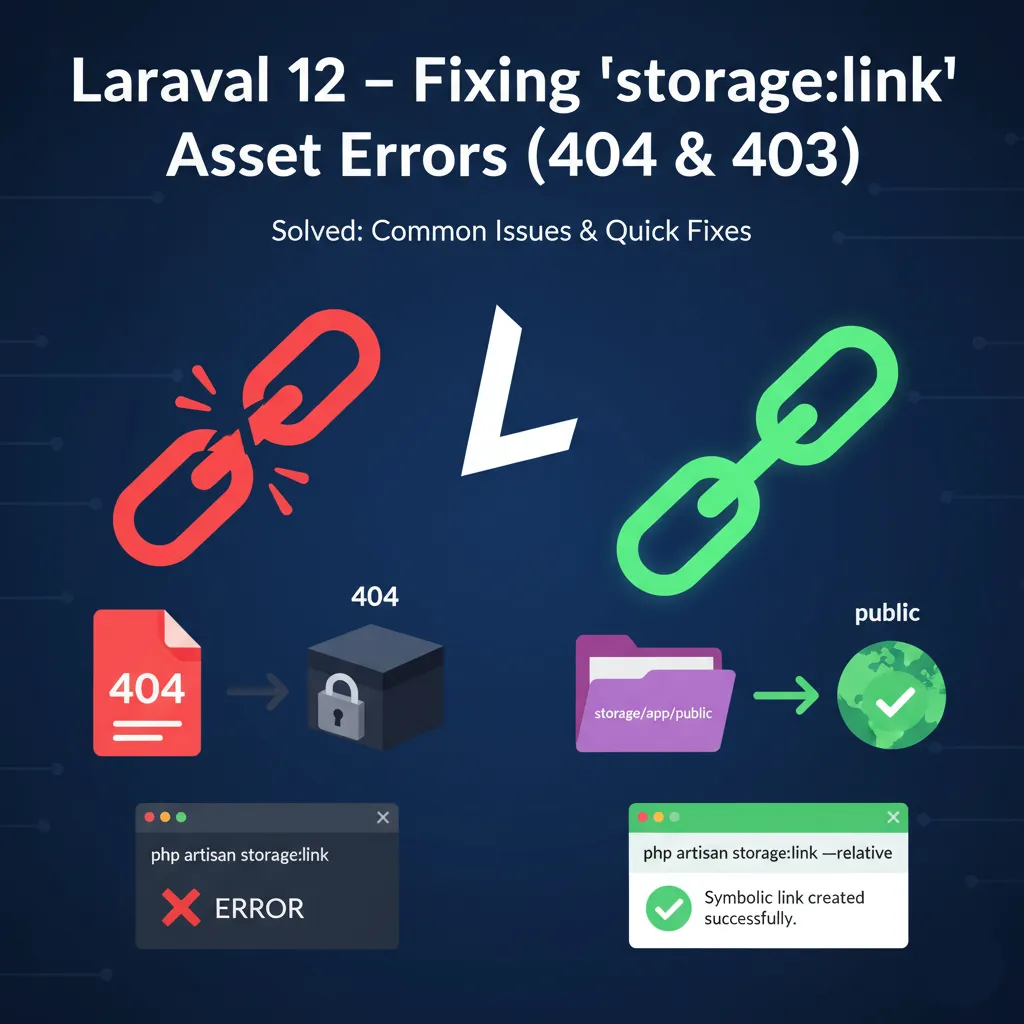
But for browsers to access them publicly, Laravel creates a symbolic link:
public/storage → storage/app/public
If this link is missing or broken, your images won’t show — and you’ll get the storage asset error.
2. Run the Storage Link Command
Run this artisan command from your project root:
php artisan storage:link
This will create a link between:
public/storage → storage/app/public
Now your files should be accessible via:
{{ asset('storage/filename.jpg') }}
3. If You Get “Target Already Exists” Error
Sometimes you might see:
Error: The "public/storage" directory already exists.
To fix it:
rm -rf public/storage
php artisan storage:link
This removes the old broken link and creates a fresh one.
4. Check File Permissions
Make sure the storage directories have correct permissions:
chmod -R 775 storage
chmod -R 775 bootstrap/cache
If you’re on Linux or Ubuntu, you can also set ownership:
sudo chown -R www-data:www-data storage
sudo chown -R www-data:www-data bootstrap/cache
This ensures Laravel can write and read files properly.
5. Use Correct Asset Path in Blade Files
Use this format in your Blade templates:
<img src="{{ asset('storage/file name.jpg') }}" alt="Profile Picture" />
❌ Don’t use /storage/app/public/ — that’s a private directory.
✅ Always use asset('storage/...') or url('storage/...').
6. Double Check .env Configuration
Make sure your .env file includes:
FILESYSTEM_DISK=public
And your config/filesystems.php has:
'public' => [
    'driver' => 'local',
    'root' => storage_path('app/public'),
    'url' => env('APP_URL').'/storage',
    'visibility' => 'public',
],
If you made any changes, clear the config cache:
php artisan config:clear
7. Bonus Tip – Deploying on Shared Hosting or VPS
If you’re on a shared hosting (like cPanel) and php artisan storage:link doesn’t work,
you can manually create a symbolic link using SSH:
ln -s /home/username/project/storage/app/public /home/username/public_html/storage
Or use Laravel’s custom command inside a deployment script to recreate the link automatically.
Conclusion
That’s it! You’ve successfully fixed the Laravel 12 storage:link asset error.
Now your uploaded images and files will display correctly without broken links.
If you’re setting up Laravel on a new server, make sure to always:
- Run
php artisan storage:link
- Set proper folder permissions
- Verify
APP_URL and FILESYSTEM_DISK in .env
Frequently Asked Questions (FAQs)
1. What does php artisan storage:link do in Laravel?
The php artisan storage:link command creates a symbolic link between public/storage and storage/app/public.
This allows files stored in Laravel’s storage folder to be publicly accessible via the browser.
2. Why is my Laravel storage:link command not working?
This usually happens when the public/storage folder already exists, or when you don’t have the correct permissions.
Delete the existing link and recreate it:
rm -rf public/storage
php artisan storage:link
3. How can I fix the “The public/storage directory already exists” error?
Simply remove the existing directory and run the command again:
rm -rf public/storage
php artisan storage:link
This will create a fresh symbolic link.
4. My uploaded images are not showing even after running storage:link. Why?
Check these points:
<img src="{{ asset('storage/file name.jpg') }}" />
5. How to fix storage link error on shared hosting (like cPanel)?
On shared hosting, artisan commands may be restricted.
Use SSH and run this command manually:
ln -s /home/username/project/storage/app/public /home/username/public_html/storage
Or ask your hosting provider to create the symbolic link for you.
6. What should be the correct FILESYSTEM_DISK setting in .env?
Use:
FILESYSTEM_DISK=public
This ensures that files uploaded using Laravel’s Storage facade are stored in the public disk and can be accessed publicly.
7. Do I need to run storage:link after every deployment?
Yes, ideally you should.
When deploying Laravel to a new server or after clearing files, the symbolic link may not exist — running php artisan storage:link ensures all file assets work correctly.
8. Can I use a custom path for Laravel storage link?
Yes. You can create custom symbolic links using:
php artisan storage:link --relative
or manually specify paths via config/filesystems.php.
However, using the default public link is recommended for simplicity and compatibility.
9. Why do I need storage:link in Laravel?
The storage:link command creates a secure way to serve user-uploaded files while keeping them outside the public directory for security reasons.
10. Can I use storage:link on shared hosting?
It depends on your hosting provider. Some allow symbolic links, while others don't. Contact your provider or use alternative methods like serving files through controllers.
11. What's the difference between public disk and storage:link?
The public disk is a filesystem configuration, while storage:link creates a symbolic link to make files in storage/app/public accessible via the web.
12. How can I check if my storage link is working?
Create a test file in storage/app/public and try to access it via your browser using the /storage/ URL.
13. What should I do if storage:link fails on production?
-
Check file permissions
-
Verify directory existence
-
Check server symbolic link support
-
Use manual symbolic link creation
-
Contact your hosting provider
14. Can I have multiple storage links?
Yes, you can define multiple links in your config/filesystems.php file.
15. Is it safe to delete the storage link?
Yes, but your user-uploaded files won't be accessible via the web until you recreate the link.